

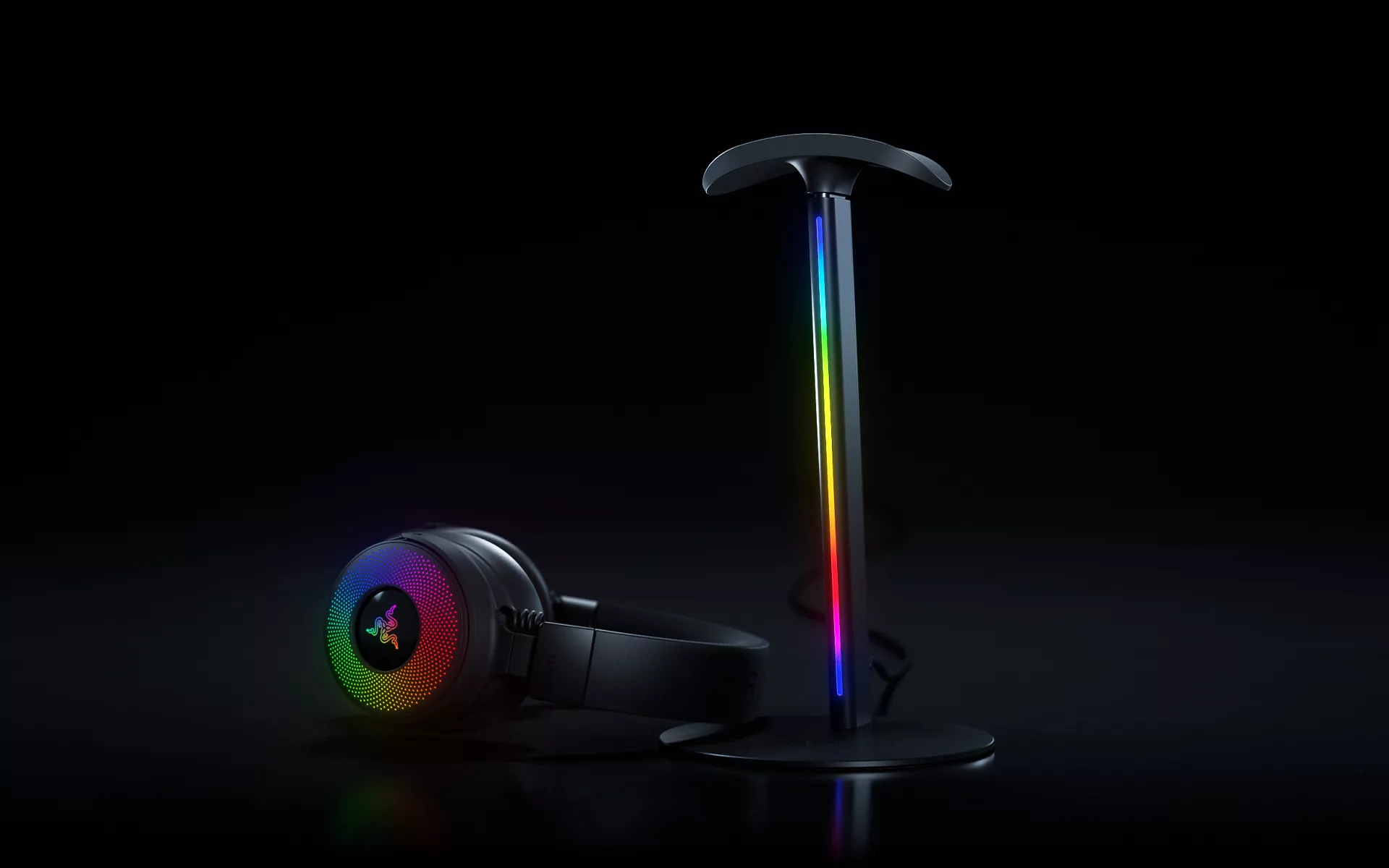
Your setup is where everything comes together. The lighting around your desk, the sound that pulls you into the moment, and the small details that make the space feel like your own all shape the way you experience it. The Razer Base Station V3 Chroma builds on that with a headset stand designed to play an active role in your setup.
Lift your headset off the stand, and Seamless Headset Detection can trigger the settings you have chosen in Razer Synapse, from switching your audio device and launching games to changing your Razer Chroma RGB lighting.
The Razer Base Station V3 Chroma is a gaming headset stand built around that simple interaction, bringing together automation, connectivity, audio, and Razer Chroma RGB in one place on your desk.
Can Your Setup Know When You’re Ready to Play?
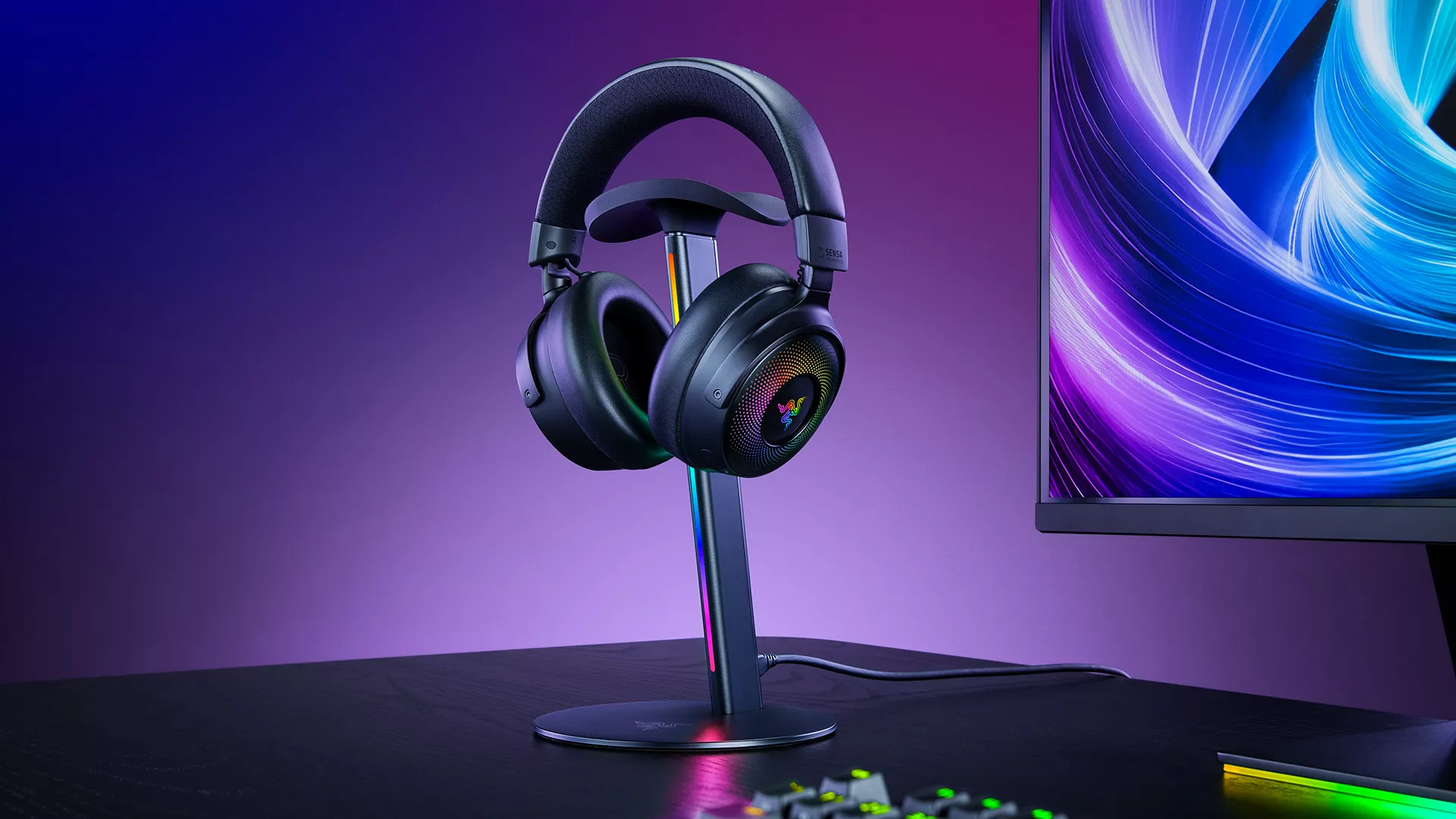
There is something satisfying about a setup that is ready when you are. With Seamless Headset Detection, the Razer Base Station V3 Chroma can trigger the actions you have set in Razer Synapse as soon as you pick up your headset.
Set up your preferred actions once, and they can run automatically each time your headset leaves the stand. Whether you want to switch from speakers to your headset before a game, launch the title you are about to play, or change your Razer Chroma RGB lighting, you can build the routine around the way you use your setup.
Because Seamless Headset Detection works with any headset, the feature stays flexible across different setups and preferences.
How Do You Add More Ports Without Adding More Clutter?
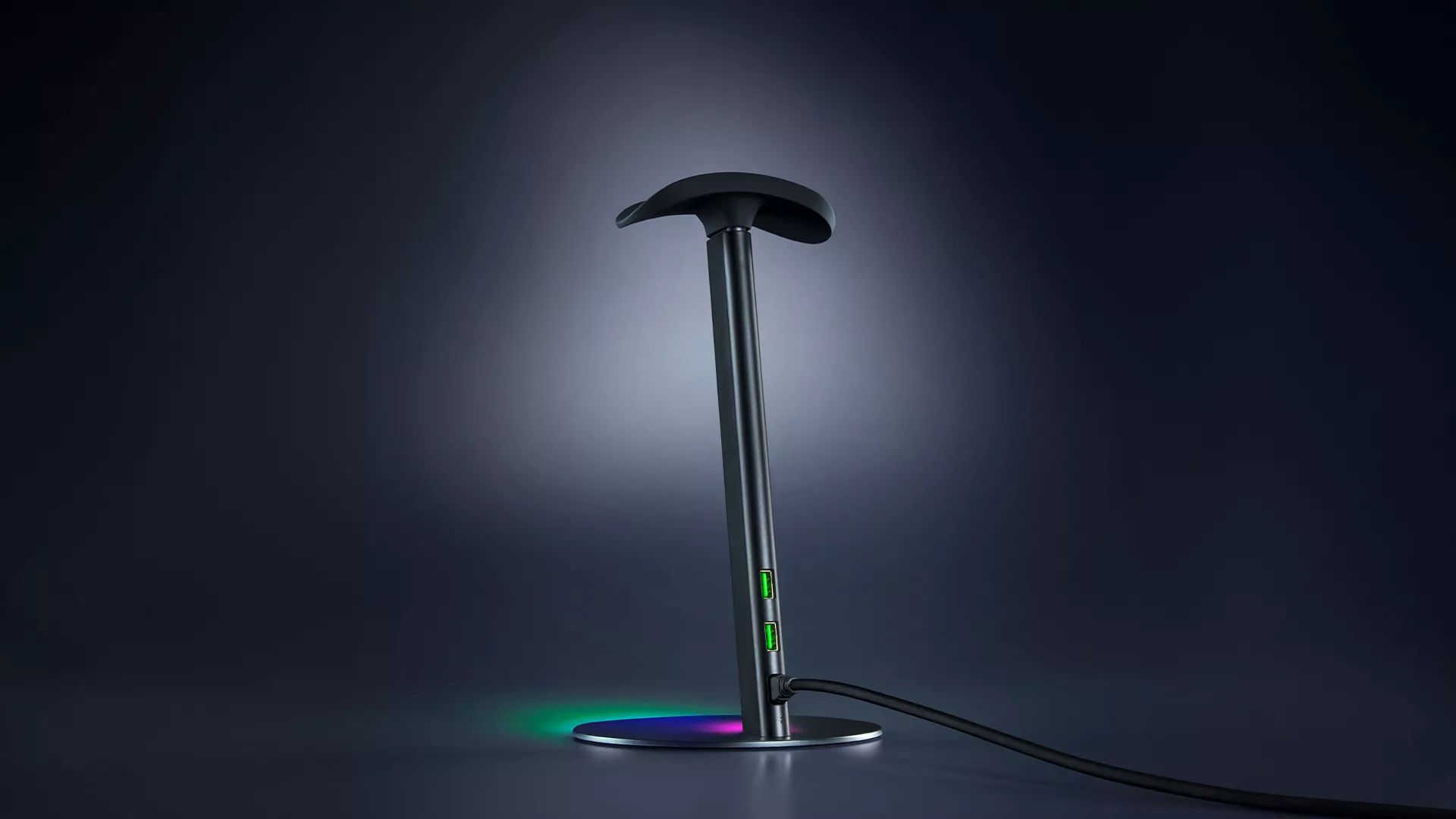
Two USB 3.1 ports built into the Razer Base Station V3 Chroma keep frequently used devices within easy reach, giving you additional connectivity directly from the stand.
Whether you are connecting a peripheral, charging a device, or simply looking for easier access to USB ports from your desk, those extra connections are right where you need them.
Will Your Headset Actually Stay Put on the Stand?
The Razer Base Station V3 Chroma’s curved, anti-slip ledge is shaped to support a wide range of headset sizes while distributing pressure across the headband, including larger, heavier models.
Underneath, a felt anti-slip base grips the desk on contact, so the stand stays exactly where you put it, every time you lift your headset off and set it back down.
How Can A Headset Stand Actually Improve Your Gaming Audio?
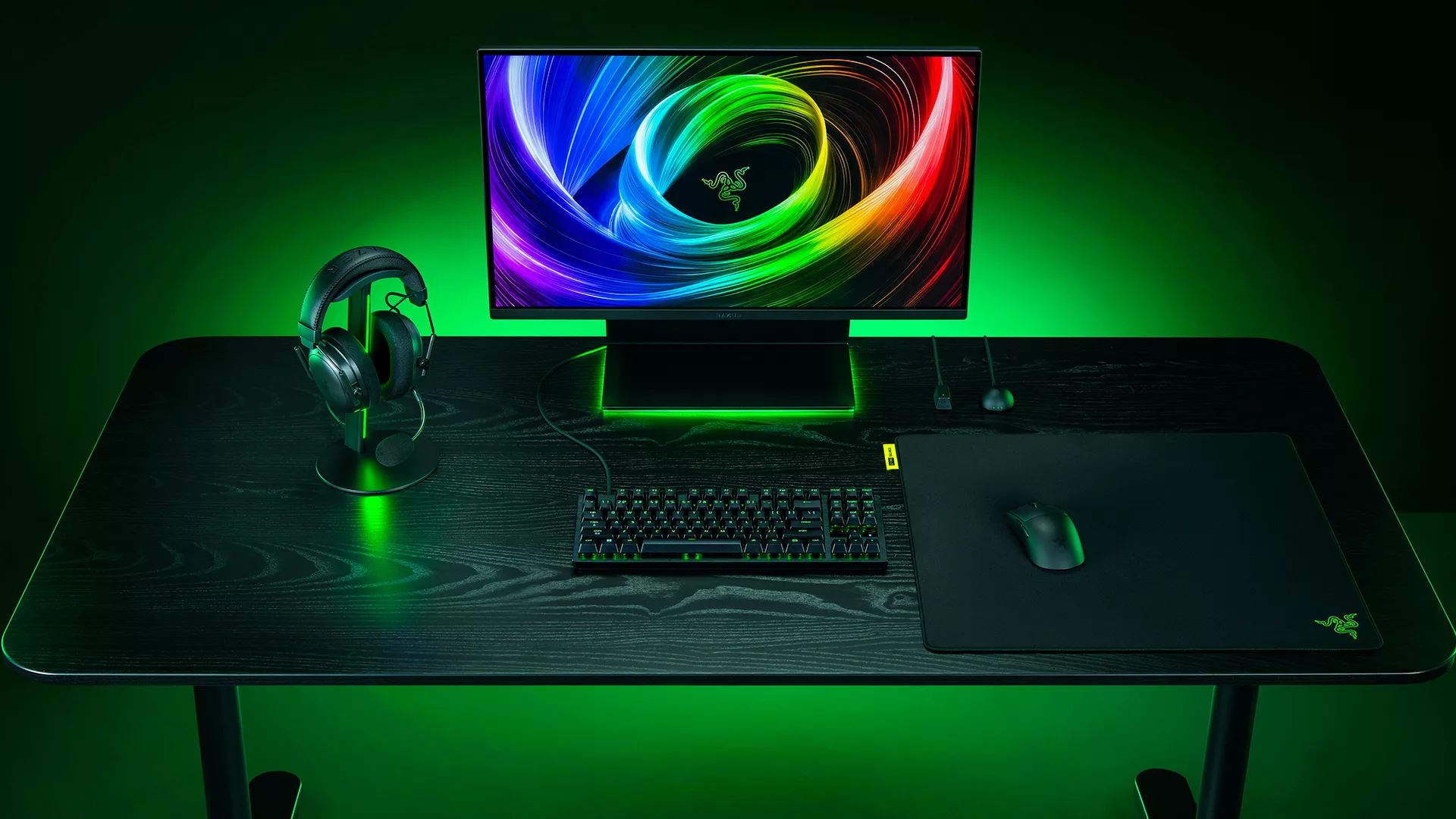
Once your headset is on, the Razer Base Station V3 Chroma also gives you access to Razer 7.1 Surround Sound software.
Virtual surround sound adds greater spatial depth to your audio, helping sounds feel more clearly positioned around you. In a shooter, for example, that added sense of direction is a game-changing feature that can help you place movement within the soundscape while keeping you immersed in what is happening on screen.
Razer 7.1 Surround Sound is software-based, giving you another way to shape your gaming audio through a compatible Windows PC.
Will It Match the Rest of Your Razer Chroma RGB Setup?
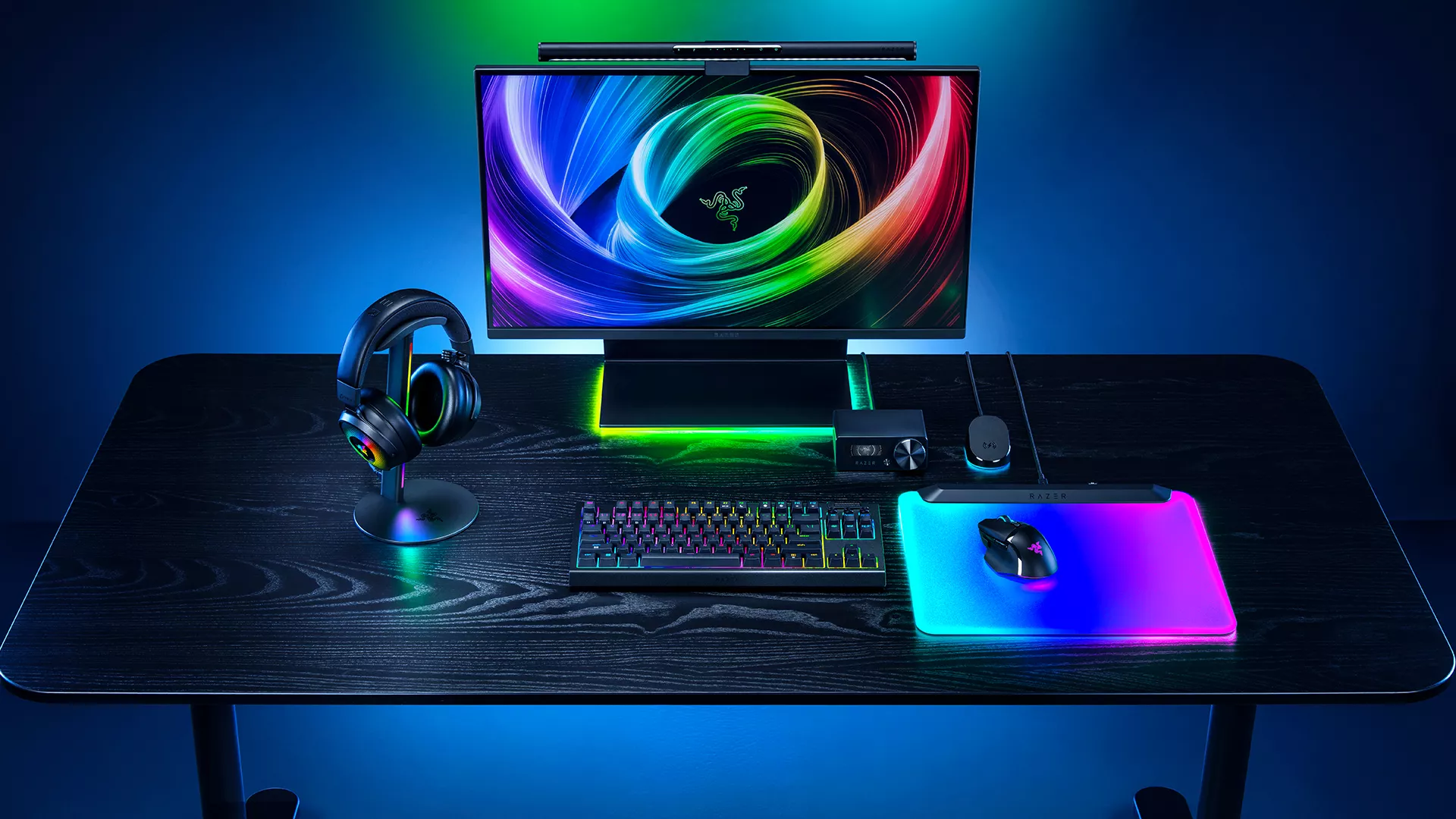
The Razer Base Station V3 Chroma features 12-zone vertical RGB lighting powered by Razer Chroma RGB, giving you access to 16.8 million colors and a full range of lighting effects.
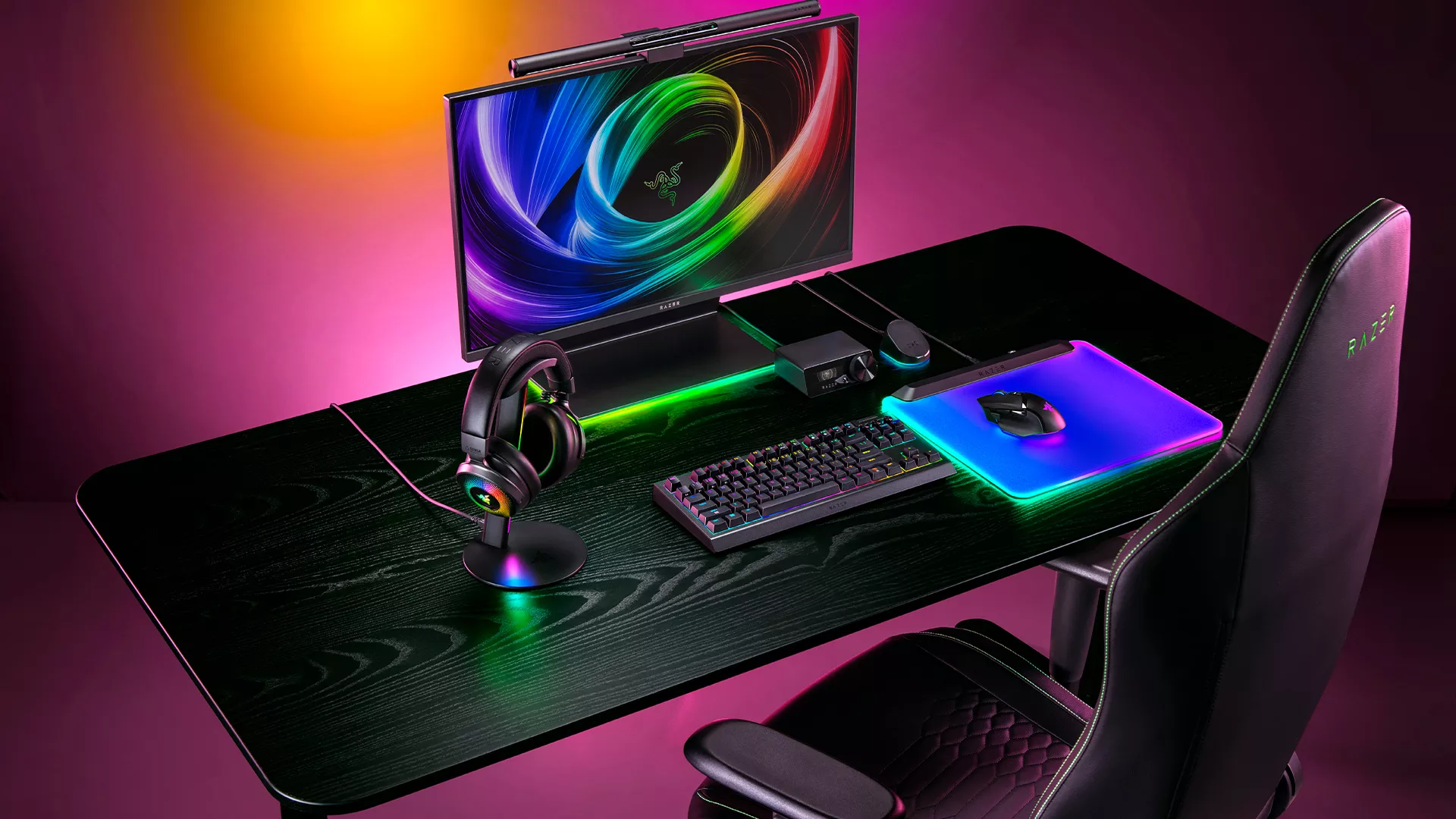
Sync it with compatible devices across your setup, and the Razer Base Station V3 Chroma’s lighting can match the rest of your battlestation.
With support across more than 300 games, 500 devices, and more than 50 partners, Razer Chroma RGB can also react to compatible games and experiences alongside the rest of your setup.
That means the same action that triggers your preferred settings can also bring your chosen lighting into the session.
What Happens When You Grab Your Headset?
The Razer Base Station V3 Chroma brings several parts of your setup together around an action you already make every time you reach for your headset.
Seamless Headset Detection sits at the center of that experience, letting you choose what happens when your headset leaves the stand, while USB connectivity, 7.1 Surround Sound software, and Razer Chroma RGB add more ways to make the Base Station part of how you use your desk.
Discover the Razer Base Station V3 Chroma and turn the moment you pick up your headset into the moment your setup comes alive.
