

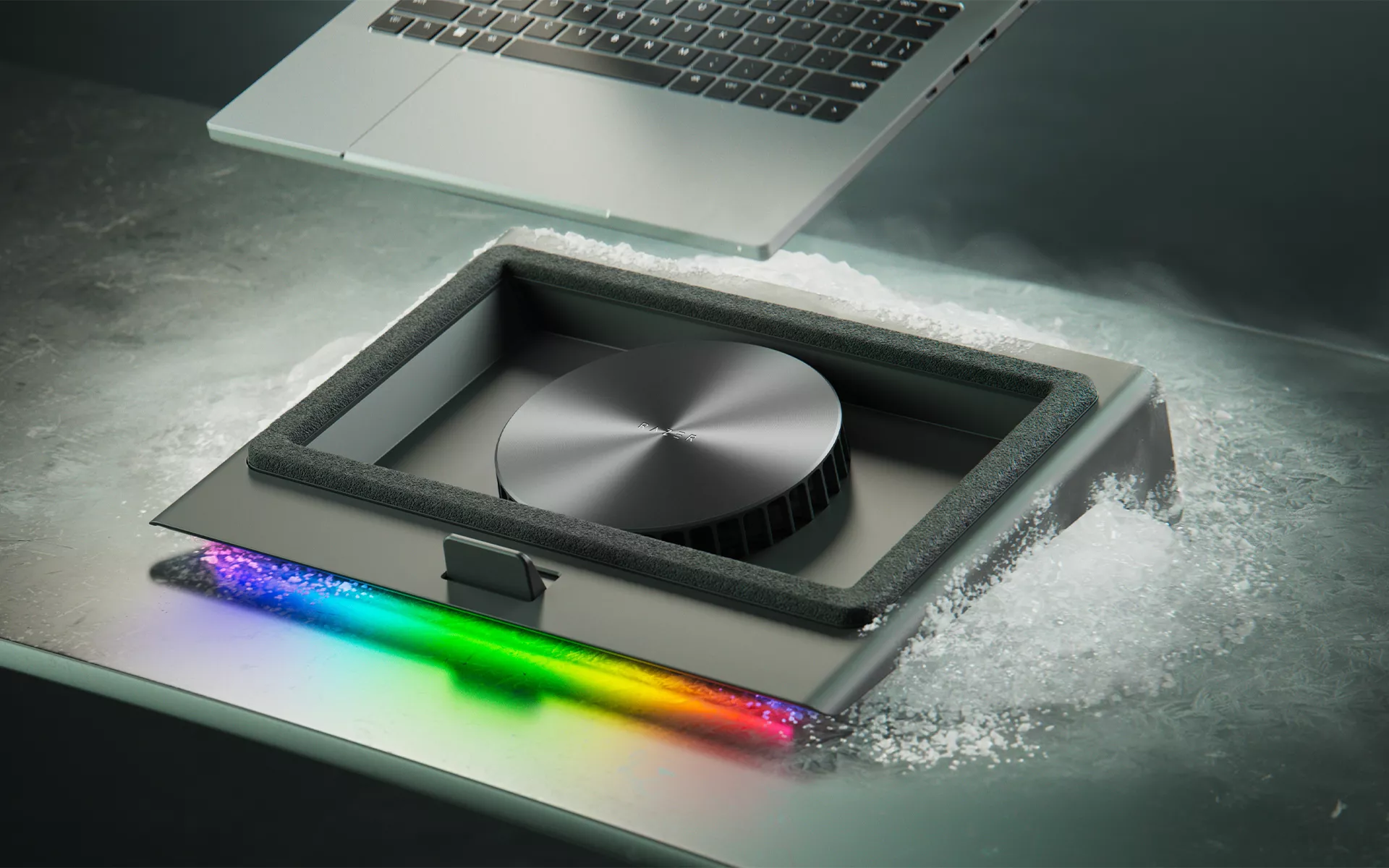
Your laptop does a lot in a compact space. One session can move from ranked games to Discord, to too many browser tabs, streaming software, and everyday work without any breaks between. All of that activity heats up your CPU and GPU, potentially slowing things down or causing issues over time.
For performance and gaming laptops like a Razer Blade, cooling plays a key role in helping your system stay consistent across gaming, work, and creative tasks. For starters: keep your laptop on a hard, flat surface, give the underside room to breathe, keep vents clear, and close unnecessary background applications before getting into it.
Remember, heat is a normal part of using a laptop. What really matters is whether your system has the airflow and cooling built in to manage that heat properly. When airflow is restricted or too many processes are running at once, your laptop has to work harder to stay cool, which can lead to louder fans, inconsistent performance, and potential thermal throttling.
Why Laptops Get Hot
Laptops generate most of their heat as the CPU and GPU do their work. These components handle the heavy lifting behind your games, managing your stream, smoothing out edits, render, and everything else running in the background.
Compact designs leave limited space for fans, heatsinks, and airflow. That makes cooling more sensitive to how and where you use it. Blocked vents, dust buildup, hot rooms, and sustained heavy usage can all make it harder for your system to manage heat efficiently.
Give Your Laptop Room to Breathe
One of the simplest cooling fixes costs nothing: paying attention to where you place your laptop.
Hard, flat surfaces give your laptop the best chance to move air properly. A desk, book, or sturdy laptop stand helps keep intake areas clear and gives warm exhaust air room to leave the system. Soft surfaces such as pillows, blankets, beds, and couches can block vents and trap heat underneath the chassis.
If your laptop pulls air from the bottom, even a small amount of elevation can help. Raising the back of the laptop allows air more room to move under the system, which can make a difference during longer sessions.
Airflow also works best when vents stay clear. Keep exhaust vents away from walls, furniture, and desk clutter. Avoid placing accessories, cables, or decorations near side vents. If you notice dust gathering around the vents, clean the area gently with compressed air or a soft brush.
Reduce Unnecessary Load
Cooling is also shaped by your software load.
A game running alongside browser tabs, cloud sync, capture tools, chat apps, launchers, and background updates can keep your CPU working harder than necessary. Before starting up a game or heavy workload, close the apps you do not need.
If your laptop suddenly feels hotter or louder than usual, check Task Manager to see whether a background process is using more CPU or GPU resources than expected. Power settings can help as well. On Windows, switching from Best Performance to Balanced during lighter work can reduce heat without a major impact on everyday responsiveness.
Know When Added Cooling Helps
Your laptop will usually tell you when it is struggling with heat. Fans may stay loud for longer than usual, performance may dip during games, or the chassis may feel hotter than it normally does under the same workload.
Temperature monitoring tools can help you understand what is happening, but try not to turn this into number-chasing. Exact temperatures vary by laptop model, component, fan profile, room temperature, and workload.* The biggest indicator is whether your laptop is behaving differently from normal.
If heat shows up during longer gaming sessions, creative workloads, streaming, or development work, added airflow can give your laptop more support. A cooling pad gives your laptop an additional source of airflow while keeping it elevated, helping your system pull in cooler air more effectively while reducing the use of onboard fans.
For laptop users who want more active thermal support the Razer Laptop Cooling Pad connects directly to 14-inch to 18-inch laptops with smart adaptive fan control, directed airflow, and easy setup for long term cooling performance.
Set Up Before the Session Starts
Before you jump into a long gaming session, start a render, or use your laptop for heavier work, give your system the best conditions you can.
Place it on a hard, flat surface with room underneath for airflow. Keep the vents clear, close the apps you do not need, and make sure warm air has space to move away from the chassis. For longer sessions, added airflow can give your laptop more support at the desk.
Whether you are gaming, working, creating, or switching between all three, these small habits help your laptop stay ready for what comes next.
Cooling performance and operating behavior may vary based on laptop design, environmental conditions, system settings, and workload.
