

In September 2024, Razer’s launch of its revolutionary Snap Tap technology made waves across the gaming community, with first-person shooter players especially excited by the feature’s ability to sharpen counter-strafing.
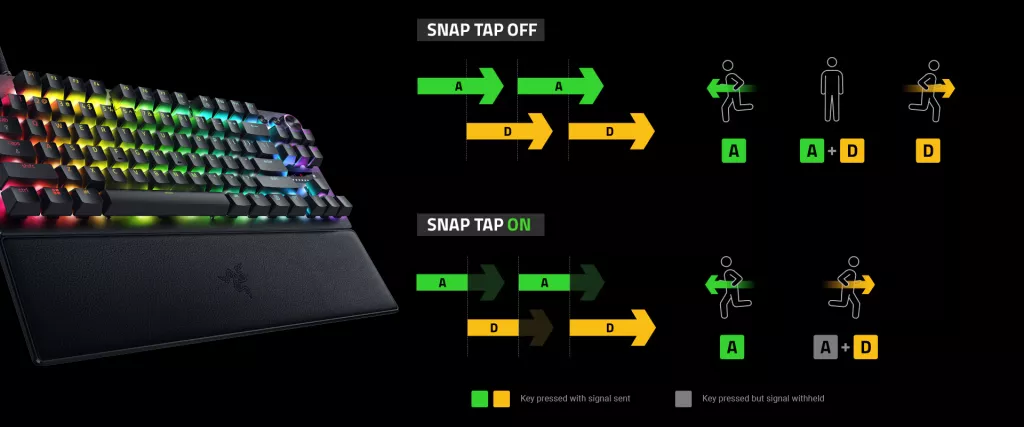
On a standard gaming keyboard, pressing two opposite directional keys cancels out movement, leaving the character stuck in place. To resume moving, one of the keys must be released before the input is recognized.
When Razer Snap Tap is turned on, it registers the latest input as priority whenever two opposing directions are detected. This means that when a player is furiously maneuvering the battlefield using lateral movement buttons A and D, for example, your character will never stop moving.
First-person shooter games like Marvel Rivals benefit greatly from Razer Snap Tap, as consistent lateral movement is essential for dodging incoming fire and maintaining momentum. For a smoother experience, players can activate it alongside the developers’ very own recommendations for optimal keyboard settings
The developers of Marvel Rivals has extensively tested our hardware, and have provided recommendations on what they believe is the idea settings to get competitive in the game.
Best Razer Keyboard Settings to excel in Marvel Rivals
Besides turning on Razer Snap Tap on A and D keys, NetEase Games also recommends setting WASD to a 1.0mm Actuation Point (the exact distance a key needs to be pressed before the keyboard registers the input and sends the signal to your computer) and Rapid Trigger Sensitivity (similar to Actuation Point but actuates dynamically along the full travel range of the switch) to 0.2mm. According to the devs, these basic movement settings give you instant key resets at the slightest finger lift, resulting in rapid directional shifts.
In Marvel Rivals, Spacebar lets your character jump and ascend while the Left Control key lets you descend. For specific characters, the Left Shift key lets you move or change position depending on their inherent ability. NetEase recommends setting these three keys to 2.0mm Actuation Point as well.
Overall, these settings let you maintain momentum during complex move sequences with quick, precise keystrokes that reduce the risk of accidental inputs. What’s more, it’ll also help minimize finger strain during prolonged sessions, letting you stay comfortable and focused.
Download the full Marvel Rivals Razer keyboard profile settings here.
The Marvel Rivals keyboard profile can be imported into Razer Synapse 4 and used with the Razer Huntsman V3 Pro line of keyboards. To maximize these pro settings however, further tweaking can be made to tailor to your specific playstyle, be it macros, keymappings, or further actuation customizations.
The Razer Huntsman V3 Pro series pairs perfectly with the Marvel Rivals keyboard profile, bringing out its full potential for the undeniable advantage during clutch moments. With additional immersive features such as Razer Chroma and Razer Sensa built into Marvel Rivals, it is no wonder that we’re the preferred hardware for any Marvel Rivals player looking to get the best gameplay experience.
A Multiverse of Immersion with Razer technologies
At the time of writing, Marvel Rivals, a hero team-based PVP shooter in the Marvel Universe developed by Marvel Games and NetEase Games, is now in Season 4. Learn more about our collaboration with the game which extends to our Razer Chroma and Razer Sensa HD Haptics here.
